You are using an unsupported browser. Please update your browser to the latest version on or before July 31, 2020.
close
You are viewing the article in preview mode. It is not live at the moment.
Home > Instructions > OneDrive > How to restore deleted files on OneDrive
How to restore deleted files on OneDrive
print icon
  1. Go to office.com
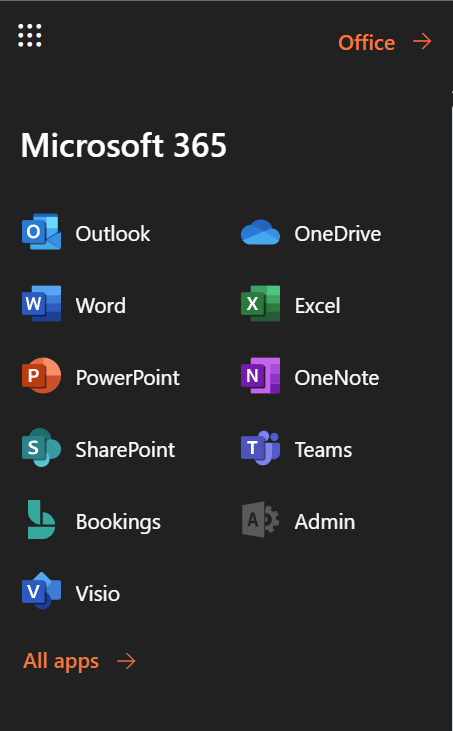
  2. Press the icon on the top left side 

  3. Once opened, press OneDrive                                                             
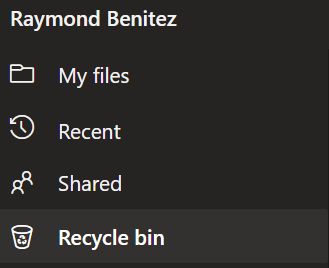
  4. In the navigation pane, select Recycle bin

                           
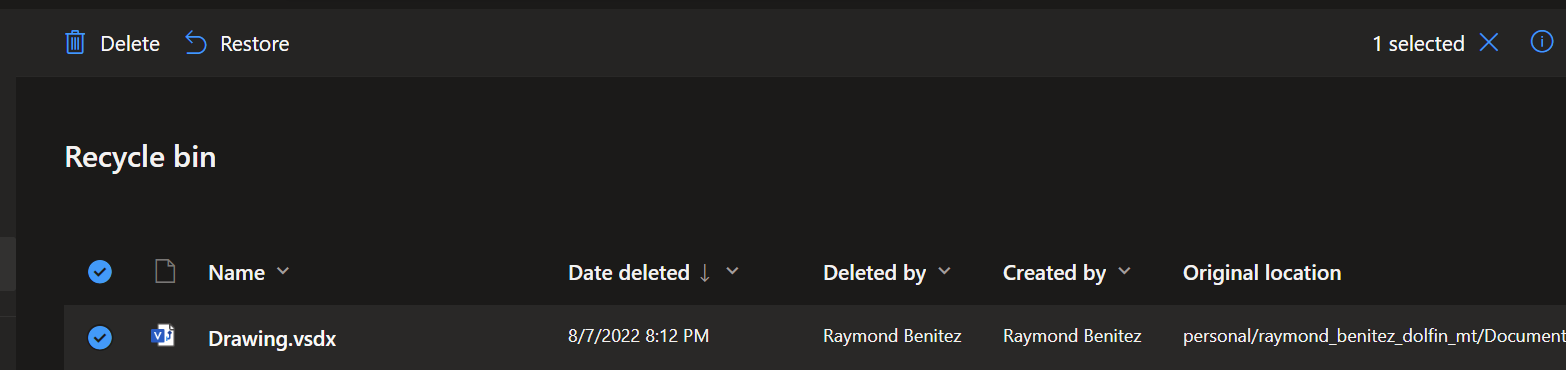
  5. Select the files or folders you want to restore by pointing to each item and clicking the circle check box that appears, and then click Restore.
Feedback
0 out of 0 found this helpful

scroll to top icon