

How to filter email on Outlook
Last updated: May 14, 2025
353
views

- Launch the app and select your Inbox.
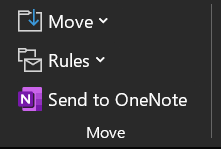
- Navigate to the Home tab, click the Rules button, and then select the Create rule option.
- Specify the conditions under which the rule will apply and choose how you want the mail client to handle matching emails.
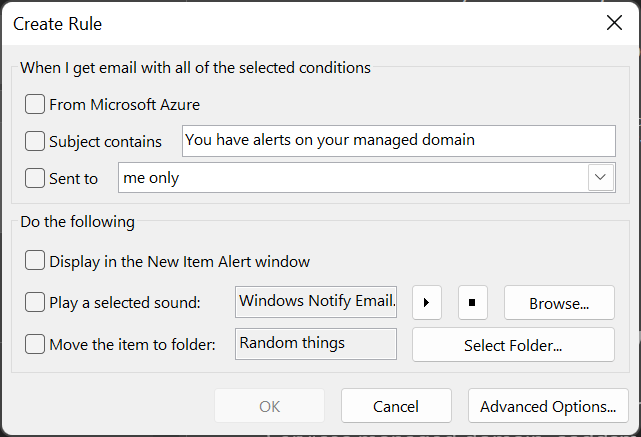
- Click OK to create the new rule.

